|
PalMod: ROM Exploration
This guide is intended for people that want to find or even modify regions of a game ROM that PalMod does not already know about. There are other arguably better ways to do this: these are just some ways you can do it using PalMod. This guide will try to cover:
- Finding new palettes for games PalMod already knows about
- Finding palettes PalMod knows about in a different version or revision of a game
- Finding palettes for games PalMod does not already know about
There is also a separate and hopefully useful guide about finding new palettes by using PalMod with the MAME palette viewer: those methods will not be redundantly covered here. :)
Tools You Need For This
- PalMod
- PalMod itself: a tool used to modify palettes in game ROMs or files. When exploring ROMs, it can be useful to have a second instance of PalMod open to a "known" game so that you can check what a given palette looks like. You can even paste the palette colors from your ROM exploration onto a sprite we have to see if it looks correct.
- The ROM for the game you're interested in.
- If you want your life to be simple, you're going to start with one of the game ROMs that PalMod already supports. If you're feeling frisky, you can load other ROMs into PalMod.
- An Extras file.
- This is a text-file extension to PalMod. This is a powerful extension that lets you use PalMod to read regions of the ROM that PalMod doesn't already know about. To do this you place an Extras file in the same directory that you launch PalMod from, or let PalMod create the file for you. If you are certain you know what you're doing and that what you're looking at is a palette, you can even update the ROM at those locations. Bad Extras files may crash PalMod: : to fix that just fix or remove that bogus Extras file.
Concepts
- Game textures
- In order to efficiently allow a game to recolor a sprite, the sprite is usually stored as a texture. A texture is raw image data that is functionally a paint-by-number sheet. When people create a RAW file, that is the equivalent of a game texture. Some image file formats support "indexed" color modes: those are using textures internally that are combined with a color table when they are shown to you.
- Palettes / Color Tables
- Palettes, or color tables, are the colors used to fill in that paint-by-number texture. One important factor is that there will always need to be a color for the background of the sprite: that is usually the "color" at position 0 in the palette. Some games actually stuff extra data in that position so it's important to never change that. The position 0 color is called the transparency color (since you want to set the sprite inactive area to be clear) or the counter color (since some games stuff counter data or other information in this 'color').
- Color Format
- The way that a color is stored in the game ROM is determined by the 'color format'. Most modern computers use at least RGBA8888: 8bits each for the red, green, blue, and optional alpha channels. The value range for an 8bit channel is 0-255 (0-0xff). This is known as 32bit color. But lots of these old games run via old software and hardware that didn't support 32bit color, so they will be using other color formats such as RGBA4444 or RGBA5551 or other formats. In modern software, we might find RGBA8888 "blue" stored in the ROM binary as "00 ff 00 00". But if we were looking at an 16bit RGB444 system, where the range for a 4bit channel is 0-15 (0-0xf), it would be listed as "0F 00" instead. Both of those might be drawn to the screen identically as "maximum blueness", but in the ROM itself they will be stored differently. For the most part PalMod will try to abstract this out: you shouldn't normally need to know about this. But ports between platforms might change color formats, so know that if the color format does change the data in the ROM will not be stored the same way.
- Hexadecimal
- You tell PalMod what locations to read using hexadecimal (hex for short). That is a base 16 system that is usually represented as "0xNUMBER". (Decimal is represented by "0nNUMBER", but PalMod forcibly treats all numbers as hex.) Hex numbers count as 0, 1, 2, 3, 4, 5, 6, 7, 8, 9, a, b, c, d, e, f, 10, 11, etc. PalMod will let you write a hex number as either "a9a9a9" (raw) or "0xa9a9a9" (has the indicative '0x' prefix). I prefer the unambiguous "0xa9a9a9" style.
- Palette storage
- Games will typically store their palettes in one region of one game file. Palettes for most games only ever start on even numbered locations (ending in 0, 2, 4, 6, 8, a, c, or e). If you get lucky, the palettes will align / start on 0x...0 locations. If the palettes have their transparency color at a different location, please make sure you update your palette file to have that transparency color location set as the first position in that Extra. If you don't do this and try to have PalMod write to the game, we might stomp on the transparency color which can cause weird effects. Some games that have a lot of palettes - or very small ROM file sizes - might store their palette data in chunks across multiple game files. The older generation of game rips (ROM sets) would typically always store one region in one file. More modern game rips of these old games sometimes store the data in stripes across multiple files. So the old rip of Jojo's, for example, had ROM files '50' and '51'. But the newer rip uses those striped (separated) across four files each: (jojoba-simm5.0, jojoba-simm5.1, jojoba-simm5.2, and jojoba-simm5.3) and (jojoba-simm5.4, jojoba-simm5.5, jojoba-simm5.6, and jojoba-simm5.7), respectively. You won't ned to think about this for the most part, but bear it in mind. If the files are separated, you would need to use PalMod's Load ROM by game : Developer Mode : Unknown Game Mode (Interleaved Files) if you're trying to load them yourself.
- Palette length
- Classic fighting games typically use 16 colors per palette, then there is another palette (lead by another transparency color), and repeat until the end of palette storage. When games started to get fancy around the SF3 era, they started using more colors: palettes can be a hard maximum of 256 colors before the end of that palette. If a sprite wants to use more than 256 colors, that would require multiple textures referencing multiple palettes.
With all of this vaguely in mind, the first thing we're going to need to get into a little depth about is PalMod's "Extra" file format.
Quick Guide to Extras Files
Your Extra file can contain a very large number of Extra definitions, but it's easiest to start small. Extra definitions are a simple way for you to tell PalMod to try to treat arbitrary regions of the game ROM as if that was color data. It might not be: figuring out where the color data is for the game takes some laborious trial and error. The Extras file names you can use for the various games are covered in the ReadMe included in PalMod. You don't need to know these names: you can use PalMod's Tools : Open Extra File menu option for any games that would support Extras files and we will open it up for you. We will also give you some useful options if PalMod already has some knowledge of that game. We'll come back to that later.
Each Extra definition is comprised of three lines. You specify one line with the title for a given palette, the next line being the starting position in the ROM for that palette, and the third line being the ending position in the ROM for that palette. For example:
Ryu's Pet Hamster
0x2400e
0x2402e
This would create a PalMod entry for the "Ryu's Pet Hamster" palette that reads the 0x20 (0n32) bytes (representing 16 colors at two bytes per color) between 0x2400e to 0x2402e. You can specify a lot of Extras entries if you need to: at one point Jojo's support was entirely being done via SFIII3's Extras file support.
All Extras loaded this way will be available at the bottom option of the top listbox as "Extra Palettes". When that is selected your specific Extras will show up in the bottom listbox. Any palette larger than 256 colors will be shown across multiple pages. If you specify an extreme amount of palettes we'll just load the first 5,000 or so to ensure the listbox doesn't become unmanageable. We don't show any preview sprites for Extra Palettes by default. (You can use the names on top of the Preview window to use some temporarily, or you can just use the Preview window's File : Import Layout option to load in a preview, or you can use the special ImageSection hook covered in the Read Me.)
Please note that any ROM locations/palettes present in both PalMod and in the Extras file is shenanigans: we will end up creating two references to that palette and that can cause changes in one of the two locations to be overriden by the colors from the "other" location. Please don't duplicate palettes. PalMod will make a good faith effort to check for duplicates when it loads Extra files and will try to warn you if it sees any dupes. For the purposes of ROM exploration, you might want/need to duplicate palettes: just ignore the warnings in that case for your personal use. For integration with PalMod, your Extras file should not contain any errors or duplicates.
Now that we've got all the big important concepts in mind, let's start playing with power.
First Step for Games PalMod Already Supports
- Load the game into PalMod.
- Use the File : Open Extras File to have PalMod create an Extras file for you.

I personally highly recommend checking "Create entries for unknown regions". That will helpfully show you the "gaps" in our current coverage. That is usually where the interesting palettes are. For example for Vampire Savior stages I know that the layout order on the ROM is Feast of the Damned followed by Concrete Cave followed by Tower of Arrogrance and so forth. If I was looking for something related to Concrete Cave, any missing palette would likely be found in that region, either directly before or after.
- Reload the game in PalMod (CTRL+SHIFT+O). That will load the Extras specified as part of the top listbox.
Cool! We're started: head to the second step now.
First (Only?) Step for a New Version of a Game .... But PalMod Already Knows About a Different Version
PalMod's "Remap Unit" option is intended to find palettes we alreayd know about in one version of a game ROM in a different version of the game ROM. It takes the existing Unit you're looking at (everything for the current unit seen in the top combobox in PalMod) and looks for that exact data in a ROM of your choice. So let's say I wanted to find something I know is in both COTA and XMvSF. I could load up XMvSF into PalMod, set the current unit to be a character also in COTA, and then tell PalMod to Remap Unit, pointing it to xmn.05a (a COTA ROM file). PalMod will do a set of binary searches for you, and dump the results found to a text file of your choice. Colors (and even color formats) do change between versions, so things may not match exactly. But you will often find at least outstanding starting points for the rest of your search - the areas nearby matches are going to usually be very very interesting. In some case you will find a full set of exact matches and be in great shape. In others, maybe only some match if at all. Either way, you can save a lot of time this way.
- Load the known game into PalMod.
- Select a character / unit that we know about that you want to find in the new or different version.
- Use the Tools : Remap Option.
If you saved as an Extra File, you can load the "new" game ROM in Developer Mode and use that Extra file to see (and modify) the palettes from that ROM. That's actually it for this path: you're done! Good work. If you want to keep looking for other data, continue on to the second step below.
First Step for Games / Files PalMod Doesn't Currently Support
- Use PalMod's "Developer Mode" option at the end of the Load ROM by Game file filter list. You can either load a single file you want to look at (normal, easy-ish mode) or you can load a set of interleaved files (hard mode).

If you select the Interleaved file option, and again this is hard mode and not needed for most games, you need to tell PalMod how to order those files. This mode is most useful for games that have been split back into the original memory SIMMs and need to be read as such. Looking at the MAME header files for loading that game can often hint as to what the load order should be, since it will show what files are being loaded into the same memory space.

- Once you select the files, you will get a helpful intro message. You must at this point go to File : Open Extras File and create an Extras file. Since this a game we don't know about, none of the options there are relevant. Just open up the Extras file and put Extra entries there for the regions you think you might care about.
- Next you must specify the color format you think the game uses under Settings :: Color Format. If PalMod supports another game in that game's series, you can open that other game in PalMod and copy those settings as those are often a great starting place. As long as you are not changing color size (16bit / 24bit / 32bit ), PalMod will update to use any new color format once you display any palette other than what is currently being shown. PalMod will interpret the data specified in the ROM as if it was that color. It might not be: if it's not it won't look interesting. If it is, it'll look pretty clearly like organized sets of colors. More on this later.

- Set how often you expect the transparency color under Settings :: Color Format : either every 16 or 256 colors. Note that the beginning of any new Extras entry will always be presumed to be a transparency color.
- Now reload to use the new settings.
Now that you've followed any of the above paths, you now are looking at some data. Let's talk about exploring that data.
Second Step: ROM Exploration with PalMod
You've now created an Extras file identifying the ROM regions you want to explore.
In order for that to be useful, we need to do two critical things:
- Identify the Color Format and update PalMod to use it
- Find the region(s) where palettes are stored in the game.
These steps can be done in any order. If you've started via the Remap Unit tool, you're probably already looking at everything you want. If you're looking at a game PalMod already supports, just use that Color Format - it will be set correctly for you already in most cases. If you're looking into a new/unsupported game, check to see if PalMod already supports any game on that hardware; the Color Format we set when loading that version of the game is probably going to be the color format you want to use.
But: let's figure out where the palettes are stored:
When I'm getting started on a ROM PalMod doesn't know about I might read ridiculously long ROM regions. For example for COTA the first part of my exploratory COTAE.txt Extras file that I was using to look at the "xmn.05" ROM file looked like this:
Early ranges
0xc
0x2011c
Slightly later
0x2011c
0x3011c
That of course is a huge range, and PalMod helpfully shows me a warning about that madness. PalMod disallows any native palette larger than 256 colors (the maximum size of a standard color table), but Extras file palettes can be gigantic and unwieldy. I then reloaded the ROM and got some more (expected) warnings about dupes and reading unexpectedly low areas of the ROM. I looked at the Settings : Colors Format options when loading other Capcom CPS2 games and realized I should probably set the Color Format for my COTA explorations to be xRGB444. That is also helpfully noted as the typical setting for CPS2 games.
Now we change the top listbox drop-down to be "Extra Palettes" if it isn't already. We should see PalMod's interpretation of the ROM data as if everything was a color. (You can probably close the Preview window at this point, too: you can start loading in textures, if you have them, once you're getting to late-stage refinement of the ROM locations. )
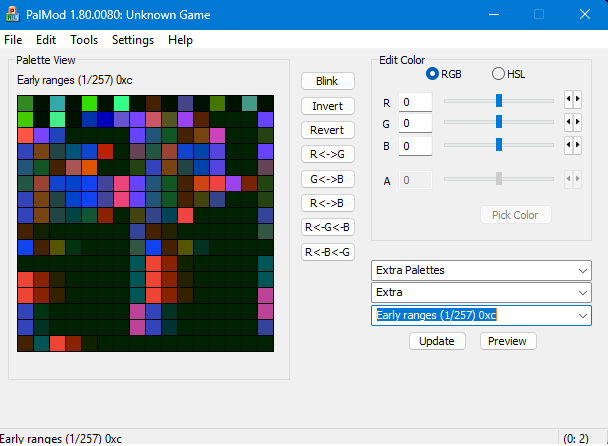
Now for the boring part. Just keep walking ROM pages. You're looking for patterns in the data and chunks of colors that look related. Character palettes are usually 16 colors each. Everything in the COTA ROM is probably going to look like a jumbled mess until about when you hit 0x2611c. Things start getting interesting at this point: this actually looks like organized colors not just random noise.

Part of finding patterns is knowing what to look for. Helpfully, the CPS2/Vs series games reuse a lot of sprites, so we can try to check for palettes from this ROM that match palettes from another game in the series. And on "Slightly later (52/128) 0x2671c" we hit our first bingo: we find an almost exact match for the main MvC2 Psylocke palette. You can copy the palette from 0x2673c over to MvC2's Psylocke and you'll see that it matches almost exactly. (The match is imperfect because they darkened her for MvC2.) Additionally, most of the CPS2-era characters have their P1 main palette followed by three P1 "extra" palettes followed by their P2 palette palette (and three P2 extra palettes). And if you look at 0x267bc - yep, that's Psylocke's P2 color. And the P1/P2 extra palettes generally match their MvC2 versions which makes things simpler.

So offhand if we're in a character region we would expect the next character palette set at (start of character P1 palette + (0x20 * 4 palettes (1 main, 3 extra)) * 2 (P1 and P2 colors)). And indeed at 0x2683e we see a markedly different palette. If you try to match that against palettes for COTA characters present in MvC2, you'll realize that that's Colossus' palette. And to jump ahead: you'll realize the the COTA character sort order is Psylocke (0x2673c), Colossus (0x2683c), Cyclops (0x2693c), Storm (0x26a3c), Iceman (0x26b3c), Spiral (0x26c3c), Omega Red (0x26d3c), Sentinel (0x26e3c), Juggernaut (0x26f3c), Magneto (0x2703c), Wolverine (0x2713c), Silver Samurai (0x2727c), and finally ST Akuma/Gouki (0x2737c). (The sort order in a game is usually adhered to, but can differ for things like character select icons.)
So now as an experiment I would update my Extra files to only contain the color palettes/ranges I wanted to change. Then I would reload the game (to reload the Extras file), modify those palettes, save to ROM, and then test it in an emulator. We don't need fancy palmods for this: you can blast them redder or greener or alternating solid color pixels: just something that will indicate that these are the right palettes for what you care about. And indeed if you modify those you'll see that those characters change. Typically when I am just getting started I will make one entire PalMod page (256 colors) red, the next one green, the next one blue, and so forth: that lets me quickly set (number of colors) * 256 pages worth of palette data at once. I note what sprites that I care about are changed through playing and experimenting with the game, and then restore the ROM from backup so I can try the next bunch of pages. Once I have done that to my satisfaction, I go back to individual pages and do the same thing line by line for each color page that I care about.
We can check MvC2's palette sets to figure out which palettes we might be dealing with/looking for. But if we're just lost or want to experiment: blast pages of the ROM to specific colors. You'll want to keep track of this, but as you slowly modify a page of colors at a time to be all red or green or yellow or etc, you can figure out if those colors are used in the places in the game that you care about or not. (You can use the Tools : Mapping Tool if you want to be super precise, but that is arguably a more difficult way to start.) That lets you start honing in on the exact regions and eventually individual palettes that you care about. For example, I now know that the Master Mold stage colors are stored around 0x36cfc: if I ever want to start working on stages, that's where I'd start.
An important thing to keep in mind is that you only want to use PalMod to write to palette/color regions. PalMod can write colors well, but cannot write non-color data. Please ensure that the Extras ranges you modify solely contain color information before you try to write to the ROM. If you modify anything other than palettes/colors with PalMod, you will quite likely corrupt your ROM (since converting raw game data to color data is bad) and need to restore it from backup.
Remember to keep updating your Extras file as you go along. If a section of a ROM isn't of interest, comment it out with a ";" in front of each line, or add comments or update the description string so you know what it is. I slowly keep slicing ROM sections in my Extras file until I know clearly what everything I care about is, and then I fold it into PalMod.
Good luck. :)
OMG But This Is Confusing and I Am Smol Brain
We've all been there! You just need to wade in and get started. So here's a quick way to get started for the task of "Trying to figure out where unknown palettes are within a known game". We will use Jojo's Bizarre Adventure: HFTF for this example.
- Load up the 51 ROM using File : Load ROM by game : Capcom CPS3 : Jojo's HFTF (Normal, Regulation: Off).
- Create an Extras file using File : Open Extras File. Check all the checkboxes, then select "Create".
- Look confusingly at the file that pops up. Just close that text file.
- Reload Jojos in PalMod now that you have the Extras file set up. This is done via File : Load Last File / Dir. You will get a couple warnings. Ignore them.
- Scroll down in the top combobox from "Jotaro Kujo" to "Extra Palettes".
- Wow! That looks like garbage data that is not colors!
- The first part you're looking at isn't. Now scroll through the bottom combobox ("Start of this ROM") as we talked about doing above.
- Scroll forever! Note that everything you're looking at right now is clearly not a palette. Once we get to "Start of this ROM (5522/5760? 0x2b2200" we start seeing something veeeery interesting. The data pattern has changed quite a lot from "random" to something clearly structured. These "columns" as mentioned above are a type of data that typically precedes palettes! So we're getting really close.
- Keep scrolling! We're so close!
- Finally we get to "Start of this ROM (5744/5760) 0x2cde00". This is most likely where the palettes are starting! (And it stops being palettes and goes back to other game data at the bottom third of "Start of this ROM (5760/5760) 0x2cfe00", and then if you went further it would indeed be more palettes.
- So now you have found ONE possible palette region. You look around in PalMod to see what is/isn't useful, then go back to the Extras file and snip out regions of the Extras file that you clearly don't care about. For example you should now change this region of the Extras file:
Start of this ROM
0x0
;To: first known palette
0x2d0000
to:
Start of palettes in this ROM
0x2cde00
;To: first known palette
0x2d0000
since we know now that nothing below 0x2cd00 is a palette.
Now that you know how to find palettes, go refer to rest of the guide above! You're a total pro! You find a palette region, look for things that loosely match what you're looking for color-wise, change the colors to something blatant (making it all grayscale is a great idea, using the Tools : Grayscale options), Patch, put the patched file in your ZIP, load it in the emulator, and see what's changed. Rinse repeat until you make progress. It's slow but you will get there.
×
![]()
|