|
PalMod: Importing Sprites from Fighter Factory
Howdy! I hope you're finding PalMod useful. This is a quick (and now simpler!) guide to generating indexed PNG (or RAW) files that can be used by PalMod for sprite preview display. PalMod has many sprites built in already, but importing SFF files is an easy way to expand PalMod's coverage. MUGEN enthusiasts in particular have created a ton of excellent Fighter Factory files over the years: looking into those can find you a ton of great sprites.
Tools You Need For This
- Fighter Factory Studio
- A MUGEN tool for sprite editing.
- PalMod
- PalMod itself: a tool used to modify palettes in game ROMs or files.
×
![]()
For this example I am using the main sprite for Midler from the game Jojo's Heritage Fight for the Future (ROM 51 / Characters), but the process works with anything. In the example here, these are contained within the MidlerPreview.SFF file.
How To
- Find the SFF (Sprite Sheet File for Fighter Factory) that you want to use. Many communities will already have collections available.
- Load the game within PalMod.
- Go to the palette that you want to generate a (new) preview for.
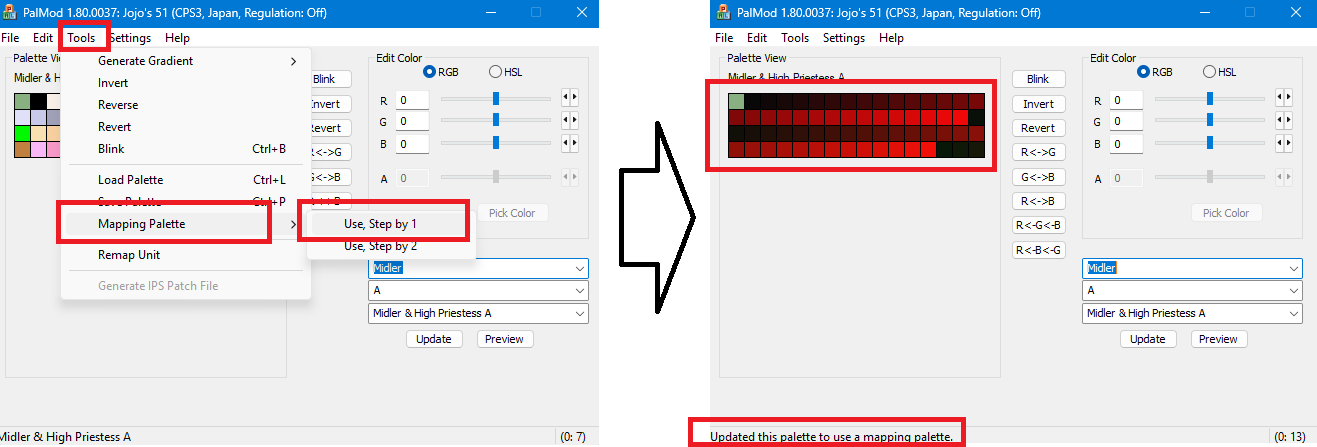
- Use PalMod's Tools : Mapping Palette : "Map Selected Palette" option. USE THIS TOOL IN PALMOD, NOT OTHER RANDOM ACTs! Using PalMod's Mapping Palette tool is superior to other ACTs because PalMod will generate the mapping table using the color space (such as RGB555 here for Jojo's on CPS3 hardware) intended for the game. Other ACTs will contain colors not "legal" (possible) on that game hardware and will cause image data loss. The Mapping Palette tool is easy and works well.
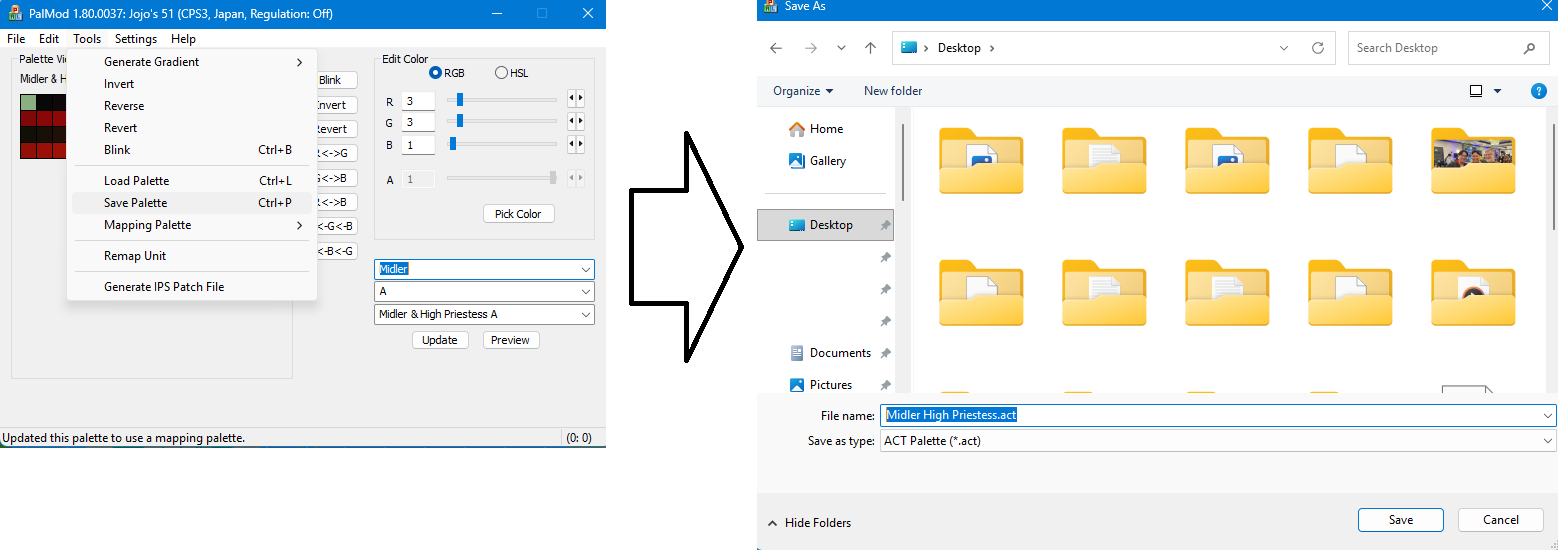
- Go to PalMod's Tools : Save Palette option and save out the current mapping palette to an ACT file.
- Keep PalMod open because we're going to be using it again, but we're now ready to use Fighter Factory.
- Open Fighter Factory Studio.
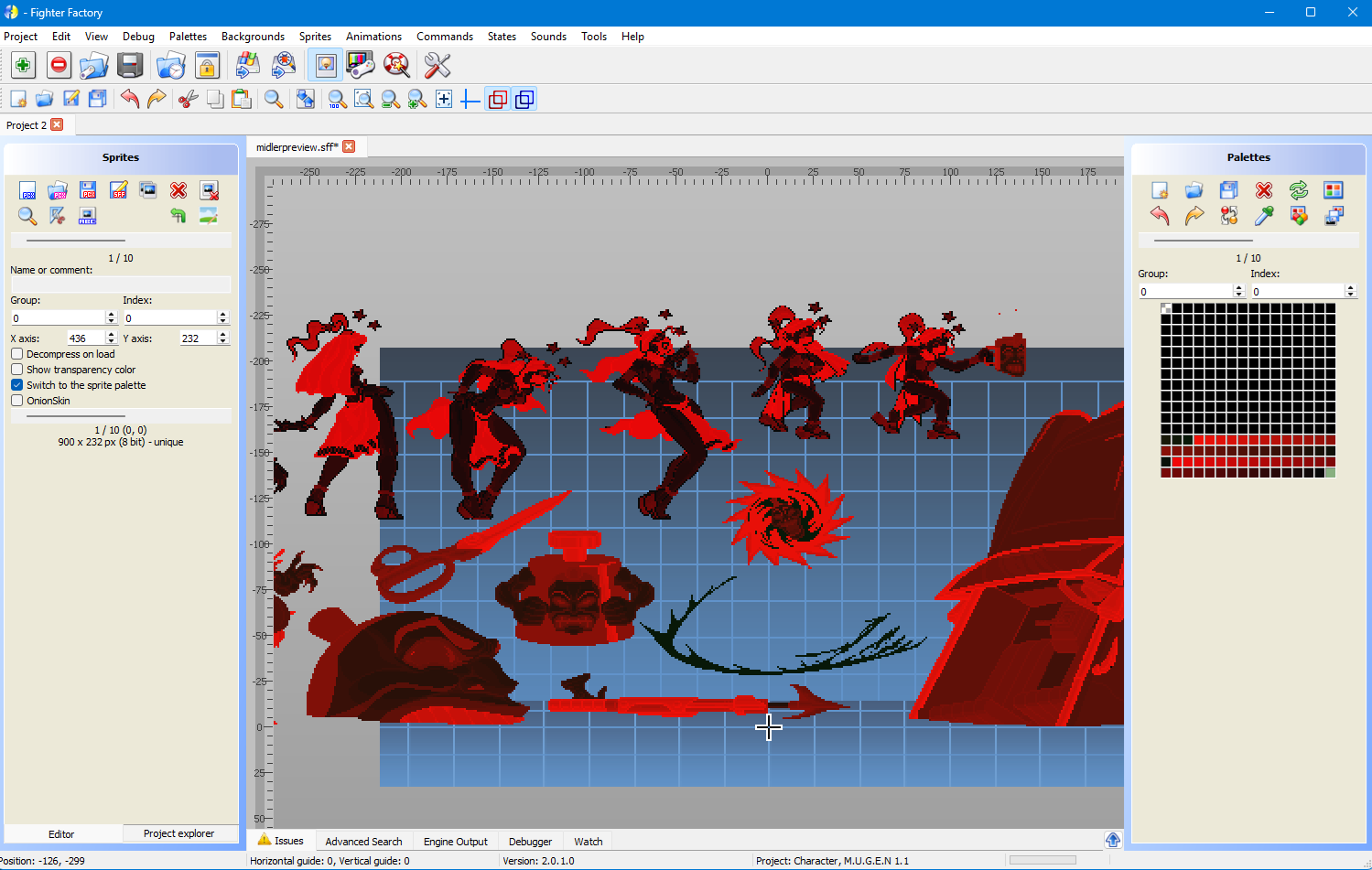
- Go to the Project menu and select "Open single file...". Open up the SFF file you want to use. (Again, I am using MidlerPreview.SFF for this example, but anything works.)
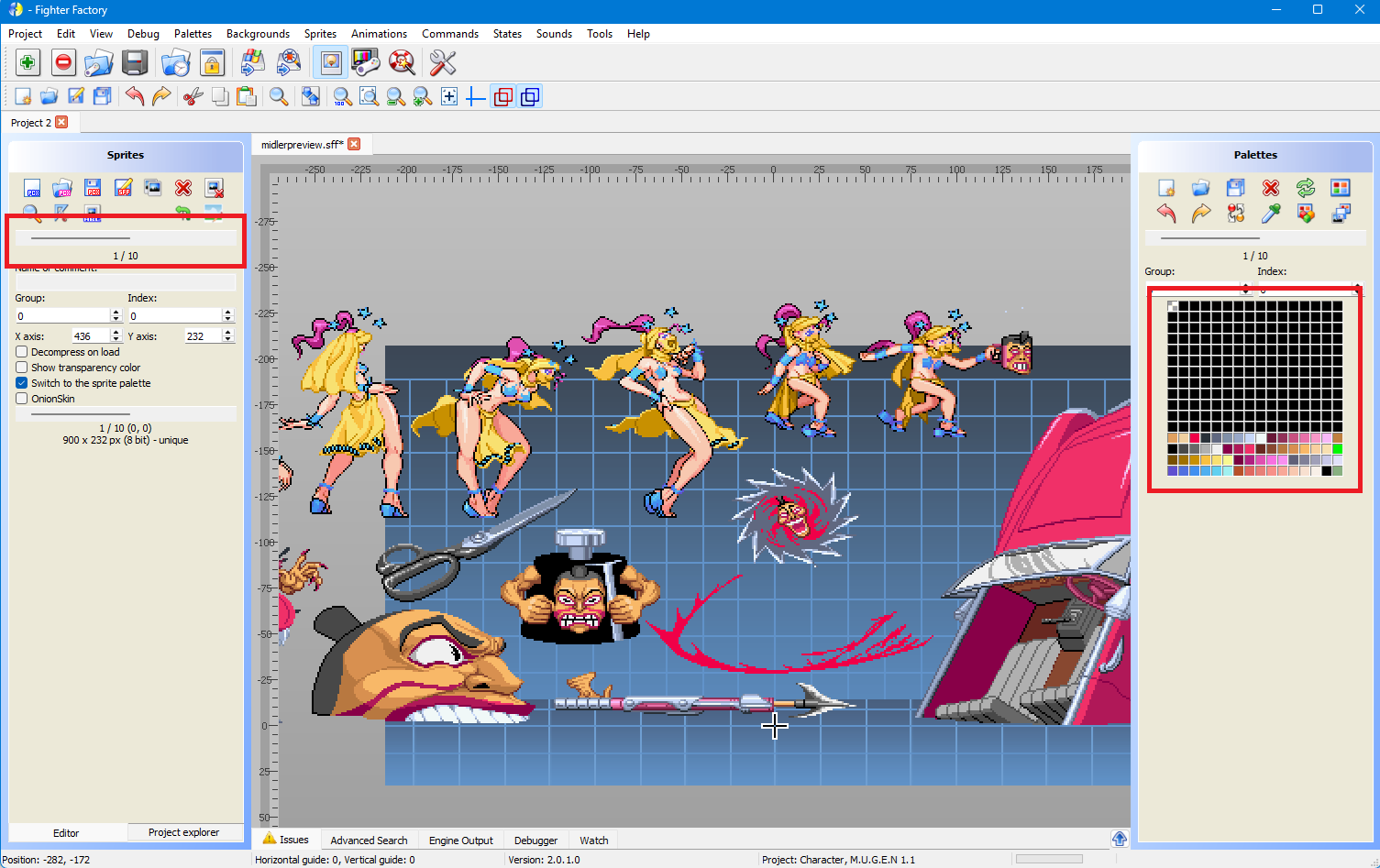
- Advance the Sprites bar on the left so that the Sprite you want to import to PalMod is being shown. (In this example am just using Sprite 1 of 10, the main preview, so haven't changed that.)
- The color table / palette for that SFF should now be visible on the right: that should match the palette normally shown for that sprite in PalMod, just upside-down.
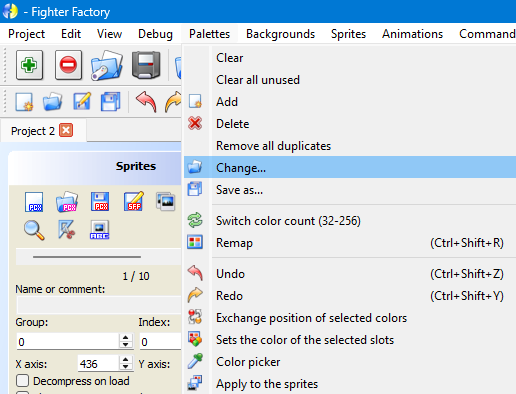
- Update the palette used by going to the Palettes menu and choosing "Change...". Then load the ACT you just exported from PalMod.
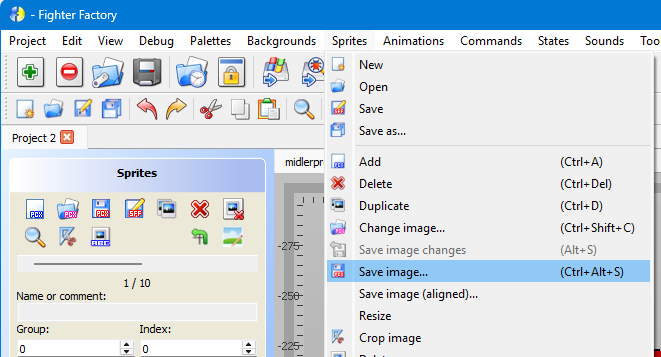
- Now go to the Sprites menu and choose "Save image...". Use this to export the image as a PNG file.
- Optional: For SFFs that contain multiple sprites on the left in the "Sprites" tab it will show "1/10" (or something like that) with an option to move a slider to change sprites. You may want to repeat these steps for every sprite within the SFF that you want to use in PalMod.
- You now have the SFF as an indexed PNG that uses that special PalMod color table. However, Fighter Factory imports color tables upside down because fuck you that's why. :'( We'll fix that in the next step.
- Go back to PalMod
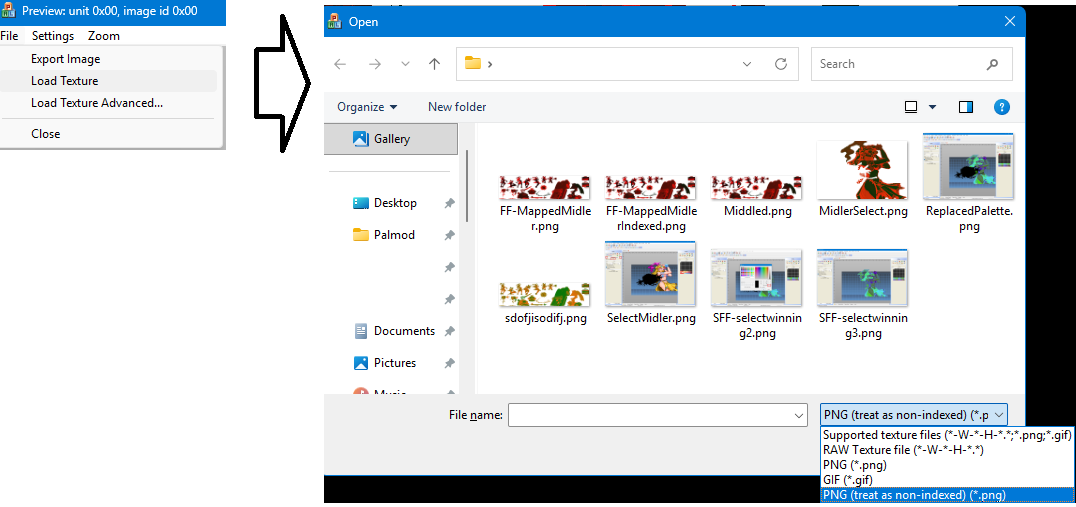
- Go to PalMod's Preview window. In the File menu there use the "Import Preview" (formerly called "Load Texture") setting to load the PNG you just saved from Fighter Factory. Because Fighter Factory is using upside-down color tables, we need to specially load this PNG. Use the new "PNG (force as non-indexed)" option. That tells PalMod to throw out the upside-down color table and instead remap the PNG image data to the currently loaded color table.
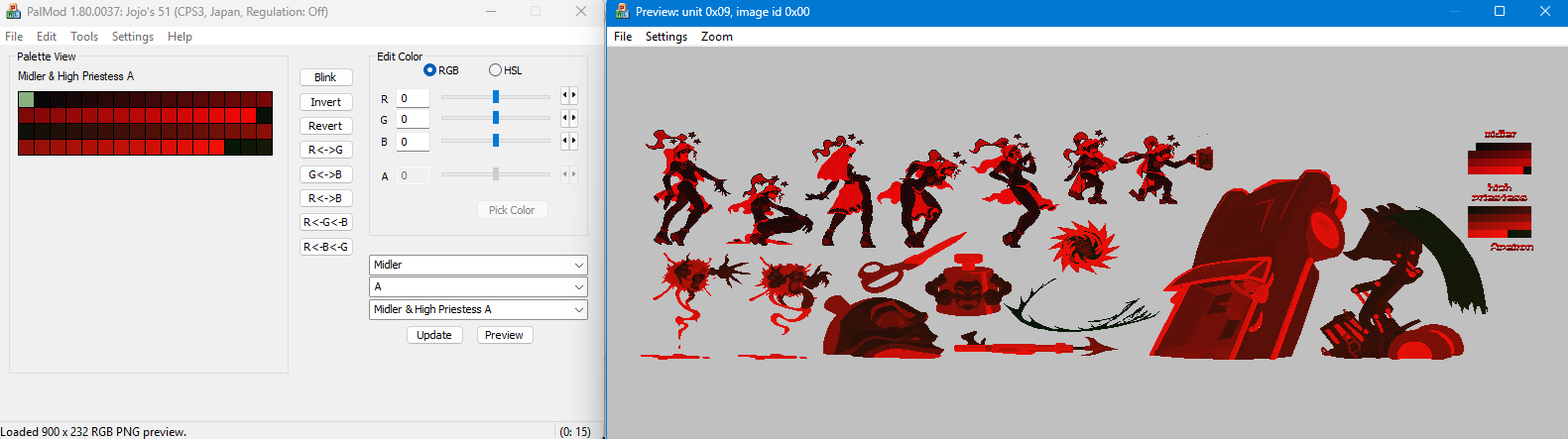
- Now, presuming you have followed the steps: simply press CTRL+Z (or Edit : Undo) in PalMod! That will revert the mapped palette back to the original palette, so that the preview now uses your new preview and the normal palette:
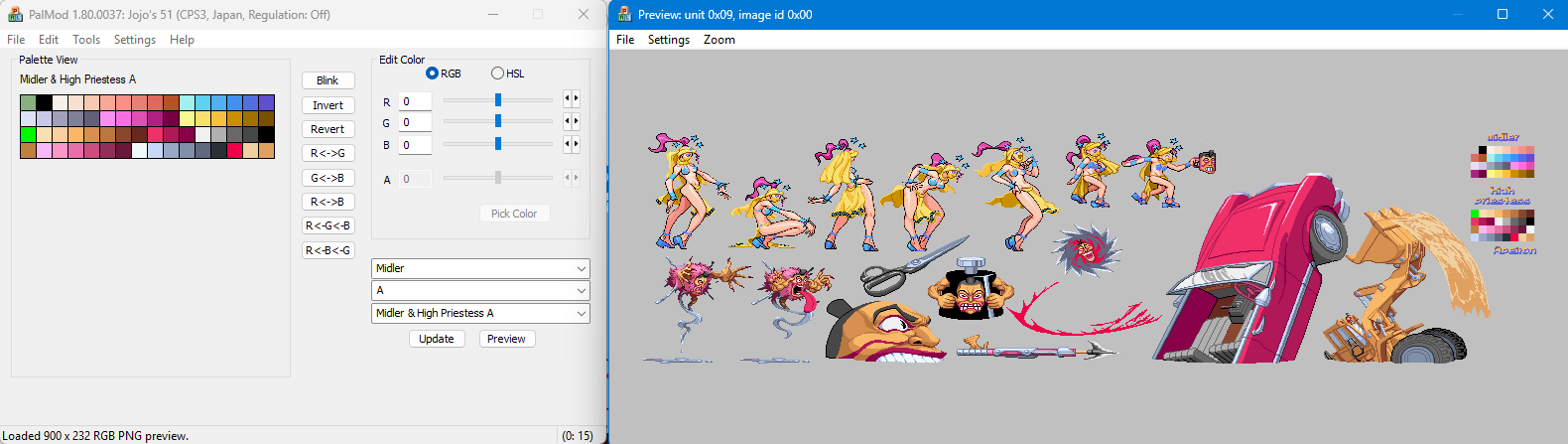 (If you didn't follow the steps, you can also just export the preview out from PalMod as an indexed PNG or RAW - once you have that it can be combined with the normal palette to produce a perfect looking preview.)
- You can now export the loaded preview using PalMod's Preview : File : Export Image for reuse later. Either Indexed PNG or RAW is a great storage method. Everything else is pretty bad.
- If everything checks out here, consider submitting the indexed PNG (preferred) or RAW to the PalMod team for integration so that others can benefit from your work. We're always happy to have improved sprite preview coverage for games.
|